
User panel
Open the panel
Section titled “Open the panel”Open the menu attached to your avatar, then choose Options. The user panel contains settings for your own account and remains separate from instance-wide administration.
Available sections
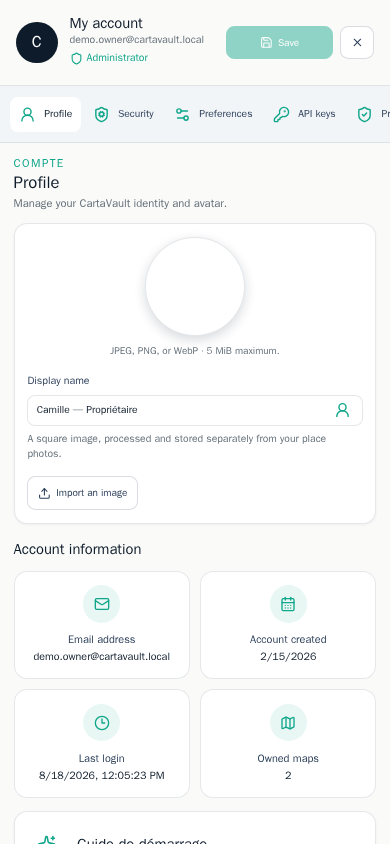
Section titled “Available sections”- Profile: display name, avatar, and account information.
- Preferences: language, theme, density, start screen, time zone, and trash retention.
- Services and API keys: search, routing, classic basemap, and satellite providers using personal or quota-shared instance keys.
- Security: email, password, TOTP or email MFA, recovery codes, and active sessions.
- Privacy: personal export and data-processing information.
- Offline data: maps and trips stored in this browser.
Instance keys are selectable when an administrator shares them with your quota profile. Their secrets remain hidden and users cannot edit them.
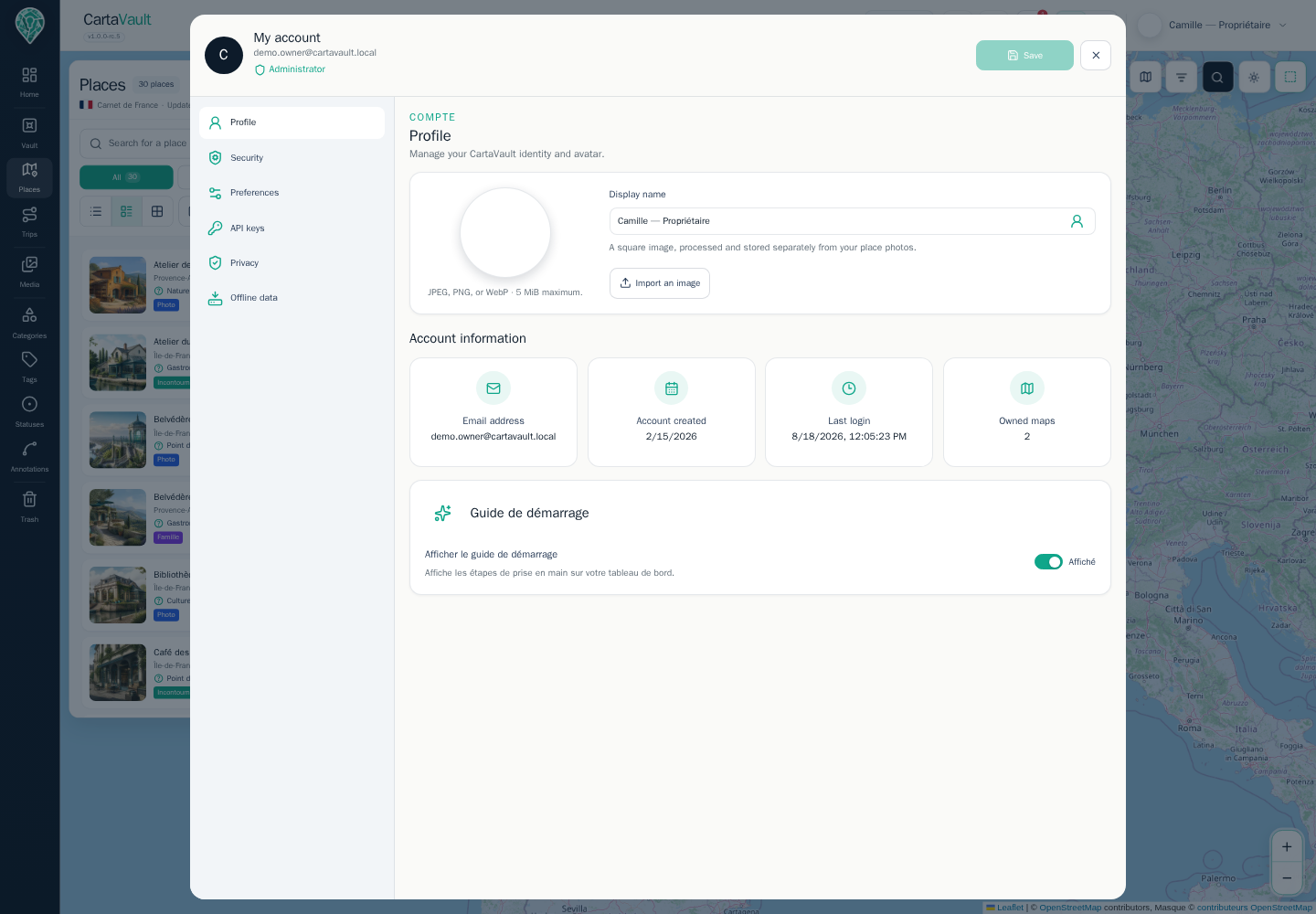
Save changes safely
Section titled “Save changes safely”The Save button applies panel changes. When closing with unsaved changes, CartaVault offers to continue editing, discard the changes, or save them.